You've probably been there. You approve a logo on screen, send it to a printer for shirts or hats, and get the reply nobody wants: the file won't work. Maybe the text isn't outlined, the strokes aren't expanded, the colors aren't set up for print, or the artwork is too detailed for embroidery.
That's where Adobe Illustrator earns its place. Adobe Illustrator was first released on January 19, 1987 for the Apple Macintosh, marking the birth of professional vector-based logo design software and revolutionizing how logos are made by enabling scalable, resolution-independent artwork essential for modern branding (Adobe Illustrator release history reference). For making logos in Illustrator, that history matters because apparel decorators still need the same thing designers needed from the start. Clean vector art that scales, separates, and reproduces properly.
If you're still shaping your concept before you draw the final version, it can help to generate unique AI branding visuals for rough direction. Use that for ideation, then rebuild the final logo properly in Illustrator so the file is production-safe.
A good logo file doesn't just look sharp. It survives embroidery digitizing, screen print separation, and DTF output without a cleanup bill attached.
Table of Contents
- From Great Idea to Unusable File
- Foundation First Your Illustrator Document Setup
- Crafting Your Logo Shapes and Typography
- Choosing Your Palette Color Systems for Print and Screen
- The Final Polish Prepping Your Logo for Production
- Exporting and Sizing for Apparel and Patches
From Great Idea to Unusable File
A logo usually becomes “unusable” for one reason. It was designed as a picture, not as production artwork. Small businesses run into this all the time. Someone sends a JPG pulled from a website, a Canva export with effects still baked in, or a PDF that looks fine until the printer opens it and finds live fonts, messy clipping masks, and strokes that change thickness when scaled.
For apparel, that gap matters more than generally anticipated. A logo for a website header can get away with detail that falls apart on a stitched cap. A logo that looks smooth on a screen can print with broken edges if the file wasn't built cleanly. And if the art has tiny cut-ins, stacked gradients, or a dozen colors, production gets slower, more expensive, and more error-prone.
Practical rule: If a logo can't be rebuilt, edited, separated, and resized cleanly in Illustrator, it isn't finished.
Making logos in Illustrator works because it forces structure. You're building paths, shapes, fills, and outlines instead of relying on pixels to fake sharpness. That gives decorators something they can use. A screen printer can separate colors. A DTF operator can inspect edge quality. An embroidery specialist can judge whether the shapes are too thin to stitch well.
That doesn't mean every logo has to be minimal. It means every part of the logo needs a reason to exist in production. Fine detail, layered shadows, distressed textures, and thin script can all work in the right context. They just shouldn't be the default starting point if shirts, polos, hats, and patches are part of the plan.
Foundation First Your Illustrator Document Setup
If the document setup is wrong, everything downstream gets harder. Color shifts happen. Effects rasterize poorly. Fine details soften. That's why the first minute in Illustrator matters more than people think.
Start with the right document settings
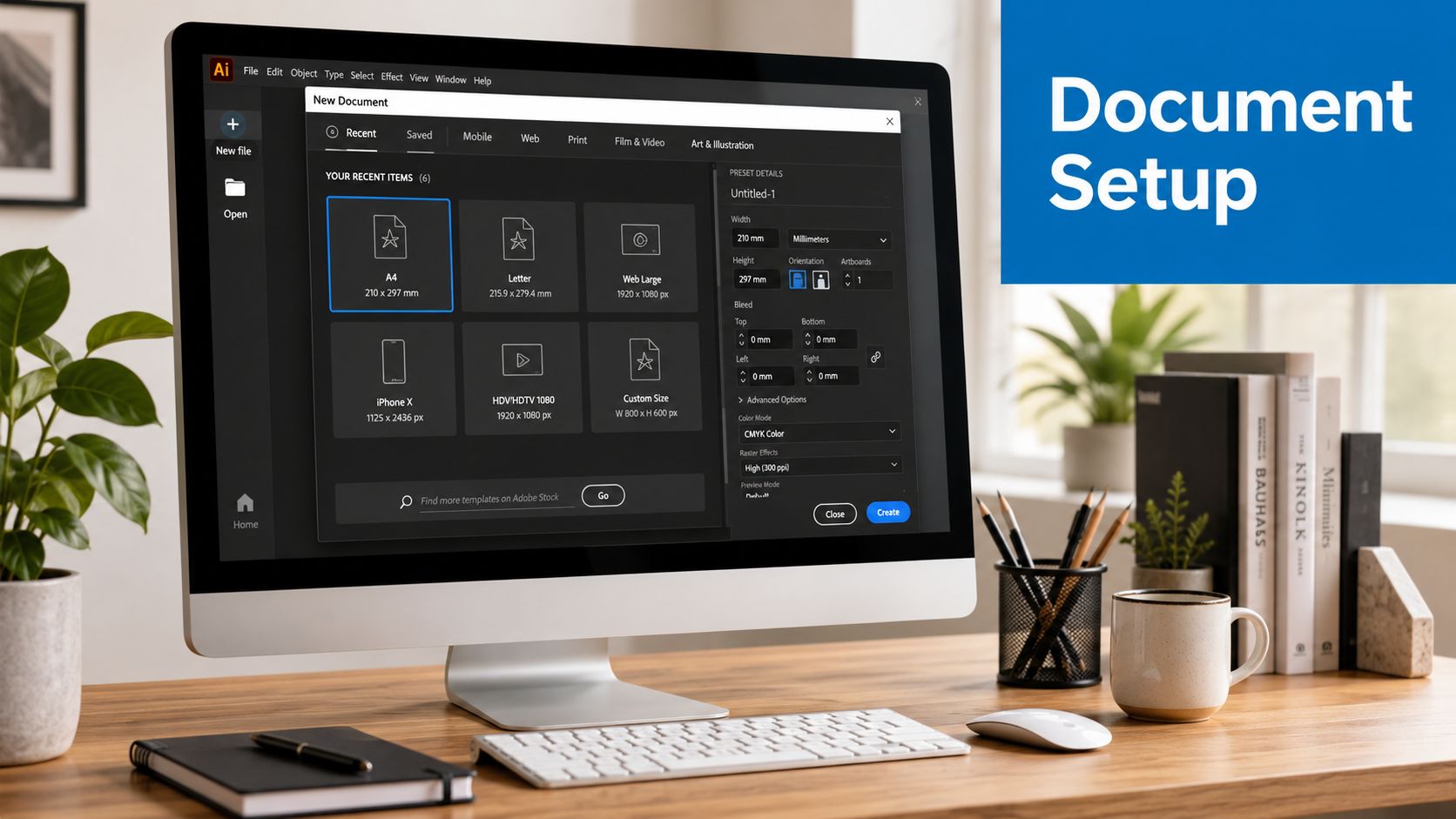
When setting up a new document in Adobe Illustrator specifically for logo design, the Critical Color Mode must be explicitly configured as CMYK Color (not RGB) to ensure print compatibility, and the Raster Effects setting must be set to "High" to guarantee sharp detail (Illustrator logo setup guidance).
That gives you the right base for printed output. If apparel is part of the plan, working in CMYK from the start keeps you from choosing bright screen-only colors that won't reproduce the way you expect in ink or thread.
Use a square artboard unless you already know the logo's orientation. A centered workspace makes symbol building easier, and it helps when you need to test stacked and horizontal versions side by side. Keep the master file simple. One artboard for the primary mark, then add additional artboards later for alternates, one-color versions, and icon-only lockups.
A few setup habits save trouble later:
- Name your layers early: Use labels like icon, type, background test, and notes.
- Keep sketch references locked: Don't let them mix with production shapes.
- Save versions deliberately: Keep a live working file before you outline type and expand appearance.
If you're new to Illustrator, a practical starting point is this collection of beginning graphic design articles, especially if you need to get comfortable with panels and tool behavior before refining brand artwork.
Build for output, not just for the screen
Most logo mistakes begin when someone designs for approval instead of for output. Approval only asks, “Does it look good?” Production asks harder questions. Can it scale down? Can it stitch? Can it separate by color? Can another operator open the file without missing assets or fonts?
That changes how you use the workspace. Turn on rulers. Use guides. Align objects intentionally. Snap related shapes where needed, but don't rely on snapping so heavily that curves become awkward. The cleaner the construction, the fewer surprises you'll see when the logo gets resized for a sleeve hit, chest print, cap front, or patch border.
Set up the file as if another production artist will inherit it tomorrow. Because sometimes they will.
Crafting Your Logo Shapes and Typography
A strong Illustrator logo starts with restraint. The best production files usually come from simple geometry, edited carefully, instead of from piling effect on top of effect.
Build shape logic before style
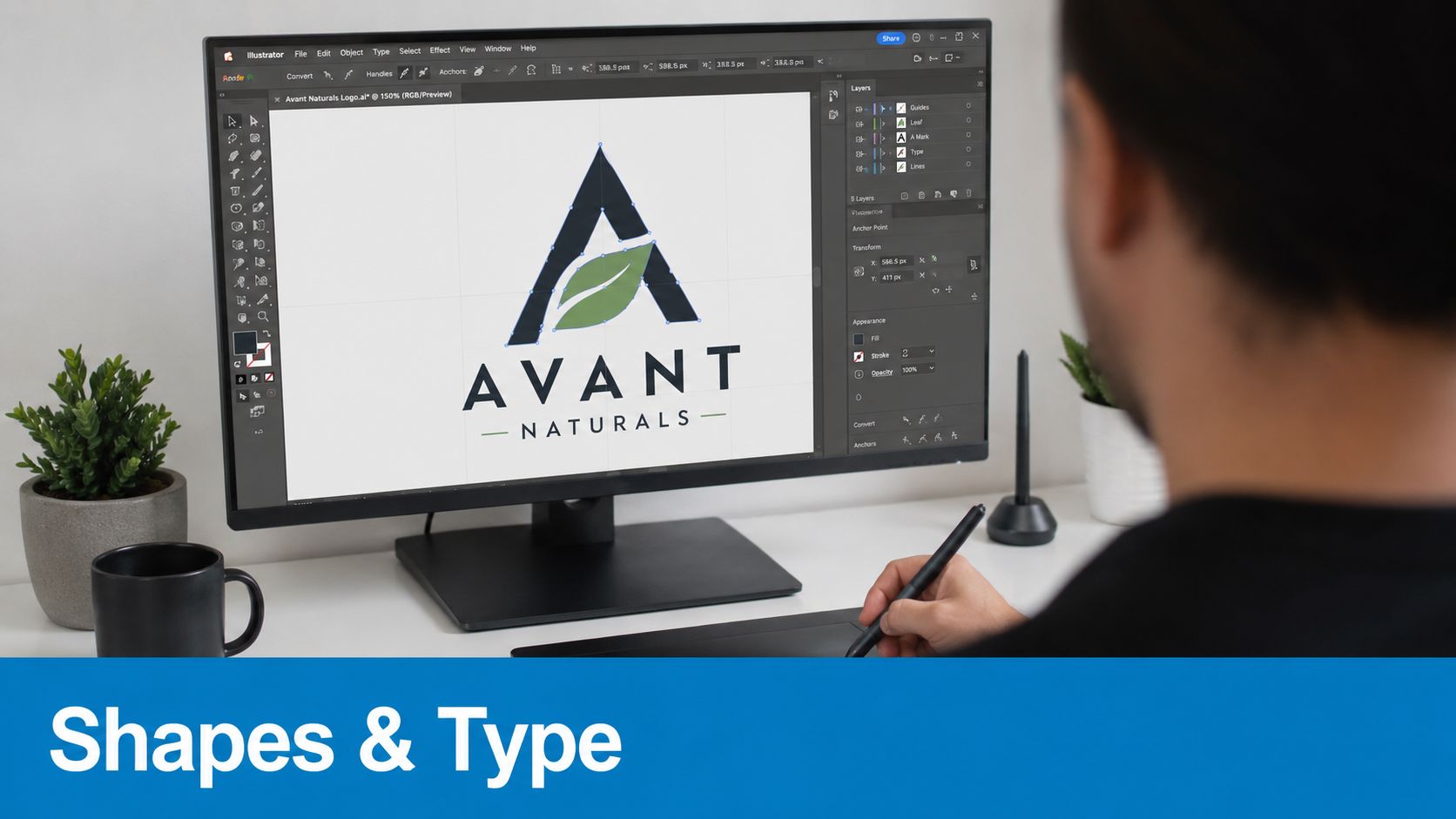
Start with basic forms. Circles, rectangles, polygons, and straight path segments give you predictable structure. Then use the Pen Tool and Shape Builder Tool to combine, trim, or refine those forms into something custom. This is the part many beginners rush, but it's where a logo either gains clarity or becomes hard to control.
If you're making logos in Illustrator for apparel, clean edges matter more than decorative complexity. A logo made from five clean shapes usually reproduces better than one built from dozens of tiny path fragments. Every anchor point is a decision. If you don't need it, remove it.
Use this sequence:
- Block the silhouette first: If the outer shape isn't memorable, detail won't rescue it.
- Add internal cuts second: Counters, negative space, and notches should serve legibility.
- Refine curves last: Smooth only after the proportions are working.
Designers often overuse the Pen Tool by trying to trace every bump manually. A better move is to start with basic geometry and let Shape Builder handle joins and subtractions. You get cleaner math and more predictable corners.
A logo should still read when you zoom out. If it only works at 400%, it isn't ready for apparel.
Treat type as artwork, not as live text
Typography is where a lot of logo files fail handoff. The font looks correct on the designer's machine because the font is installed there. Then the file gets opened elsewhere and the type substitutes, reflows, or breaks. That's why outlined type is essential before final delivery.
To create a custom typographic logo, designers must convert text to editable vector shapes by selecting "Type > Create Outlines" and then ungrouping the letters, which allows for precise modification of individual character curves (typographic logo workflow reference).
Once the type is outlined, treat it like vector artwork. Adjust spacing by eye, not just by the default kerning pair. Tuck letters together where the shapes naturally allow it. Open space where strokes crowd. If two letters almost touch in a small size, they probably will touch once the logo is stitched or printed on textured fabric.
A few practical do-this-not-that notes:
- Do keep a live-text copy on a hidden layer before outlining, in case you need to revise wording later.
- Don't deliver live fonts as the final production logo.
- Do inspect overlaps after outlining because some letterforms create awkward joins once converted.
- Don't stretch fonts horizontally or vertically to fake uniqueness. Edit the vector shapes instead.
Here's a useful visual walkthrough before you refine your own mark:
Clean paths beat clever effects
Effects are tempting because they make a draft feel finished fast. Drop shadows, glows, bevels, and roughen filters can look polished on screen. They also create avoidable problems when the artwork moves into print or stitch production.
For logo building, favor fills over strokes whenever possible. A stroke can be useful while drawing, but if that line thickness matters to the final mark, convert it into a filled shape before delivery. The same goes for brushes. If the appearance matters, expand it. Don't leave production dependent on appearance settings.
Use this cleanup pass before you call the logo done:
- Outline any critical strokes: If the line is part of the identity, make it a shape.
- Unite shapes where separation isn't needed: Fewer objects means easier handling.
- Delete hidden junk: Stray points, empty text boxes, and clipping leftovers create production errors.
- Check small-size readability: View the logo small on screen and in outline mode.
- Build a one-color version: If the logo fails in one color, the structure is probably weak.
That one-color version matters more than people realize. It tells you whether the brand is built on recognizable form or on decoration. For shirts, hats, and patches, that distinction shows up quickly.
Choosing Your Palette Color Systems for Print and Screen
Color problems usually start with the wrong assumption. People think a color is a color. In production, it isn't. It's a system.
RGB, CMYK, and spot color are different languages
RGB is for light. Screens use it. Websites, mobile apps, and social graphics live there. CMYK is for print. It's the language printers use to build color from ink. Spot color or Pantone is for situations where exact color matching matters and a specific ink or thread reference keeps everyone aligned.
For logo work tied to apparel, you need to think beyond how the logo looks on your monitor. The bright electric blue you love on screen may print flatter in CMYK. A subtle blend between two close shades may disappear on fabric. And if a screen print job needs clean, repeatable brand color, a spot approach is often easier to manage than hoping a process build lands perfectly.
A simple way to understand this:
| System | Best use | Common problem |
|---|---|---|
| RGB | Website, social, on-screen approval | Looks brighter than print output |
| CMYK | General printed materials and many production workflows | Some colors lose punch compared to screen |
| Spot color | Precise matching for branded output | More planning needed up front |
If you want a broader perspective on how color choices affect product appeal, this piece on the impact of colour on fashion sales is useful context. It's not a production manual, but it helps explain why color decisions need intention.
Choose fewer colors when apparel is the goal
Many logos get expensive fast. Every extra color can introduce another production decision. Screen printing may require separate color handling. Embroidery may need thread substitutions. DTF can reproduce more variation, but that doesn't mean the artwork should be busy.
For practical branding, start with three color versions of the logo:
- Primary full-color version
- One-color dark version
- One-color light version
That gives you flexibility for black garments, white garments, tonal applications, and stitched uses. It also forces the design to survive without relying on gradients or tiny color contrasts.
For thread-based applications, it also helps to review actual embroidery thread colors before finalizing the palette. Screen colors can fool you. Physical thread choices reveal quickly whether a detail should be merged, simplified, or redrawn.
The best logo palette for apparel usually isn't the one with the most personality on screen. It's the one that stays recognizable across dark shirts, light polos, hats, and stitched patches.
The Final Polish Prepping Your Logo for Production
This is the point where a nice design either becomes usable or gets rejected. Recent data shows 68% of small businesses struggle with logo-to-production compatibility, with 41% of submitted logos failing due to technical errors like stray anchor points or unexpanded strokes. That problem keeps showing up because most logo tutorials stop at the visual stage and ignore production cleanup.
What breaks files before production starts
A logo can look perfect and still fail for technical reasons. The usual offenders are stray points, clipping masks hiding old artwork, live strokes that were never expanded, fonts left live, and effects that depend on Illustrator settings instead of real vector objects.
If you need to recover a low-quality legacy file before rebuilding it properly, a guide on how to upscale logo can help as a temporary step. But upscaling isn't the finish line. For production, the logo still needs to be redrawn or cleaned into dependable vector paths.
Run a preflight check before you send anything out:
- Switch to Outline View: You'll spot stray anchors and hidden debris fast.
- Expand appearance where needed: If an effect affects the final shape, convert it.
- Unite intentional shapes: Don't make a printer guess what should be merged.
- Remove accidental overlaps: Extra intersections can create odd fills or stitch jumps.
- Test one-color output: This catches weak contrast logic and unnecessary fragmentation.
Screen printing requirements
Screen printing likes decisiveness. Solid shapes. Clear color breaks. No ambiguity about what prints in each area.
If your logo has touching colors, tiny knockouts, or gradients that matter to the design, screen print planning gets harder. Sometimes the answer is to simplify the art. Sometimes it's to create a dedicated print version instead of forcing the main brand file into a method it wasn't built for.
Use these checks for screen print:
- Separate colors cleanly: Adjacent colors should have a clear relationship, not accidental gaps.
- Avoid tiny isolated islands: Small floating details are easy to lose or fill in.
- Create a spot-ready version: A reduced-color file often performs better than the original full-color concept.
- Watch trapping needs: If two colors meet exactly, slight shifts in production can show edges.
DTF requirements
DTF is more forgiving than embroidery and often more flexible than traditional screen printing for detailed logos. That flexibility causes its own problem. People assume anything can print well just because the method can hold detail.
It can hold detail, but the file still needs discipline. Fuzzy edges, unnecessary transparency tricks, and layered shadows often look muddy on fabric. Strong DTF artwork has sharp contours, controlled color transitions, and deliberate negative space.
For DTF, focus on edge quality:
- Expand strokes before export
- Flatten unnecessary effects
- Keep contour edges clean
- Remove tiny accidental points and slivers
- Review the logo on both dark and light garment mockups
Embroidery requirements
Embroidery is where weak logo planning gets exposed fastest. Thread has physical width. Needles need space to travel. Small counters close up. Thin lines turn uneven. Fine scripts and tiny serifs may need redesign, not just resizing.
The smartest approach is to prepare an embroidery version of the logo, not just to shrink the master file. That version may have thicker lines, fewer internal cuts, and simplified text. It's still the same brand. It's just adapted to the medium.
Don't ask embroidery to imitate a screen. Ask it to interpret the logo in thread.
Decoration Method File Requirements
| Consideration | Screen Printing | DTF (Direct-to-Film) | Embroidery |
|---|---|---|---|
| Best file structure | Clean vector shapes with clear color breaks | Clean vector or high-quality production art with sharp edges | Simplified vector art for digitizing |
| Main risk | Too many colors or tiny knockouts | Dirty edges and unexpanded effects | Thin details and small text closing up |
| What to simplify | Gradients, distressed texture, micro details | Unnecessary transparency and clutter | Fine lines, narrow gaps, complex shading |
| Preferred logo version | Reduced-color print version | High-clarity production version | Dedicated stitch-friendly version |
| Final check | Color separation logic | Edge quality on garment background | Legibility after simplification |
Exporting and Sizing for Apparel and Patches
A finished logo isn't one file. It's a file package. Vendors need different formats for different parts of the workflow, and you want to hand over artwork that doesn't force them to reconstruct your brand from scratch.
Export the file package vendors actually need
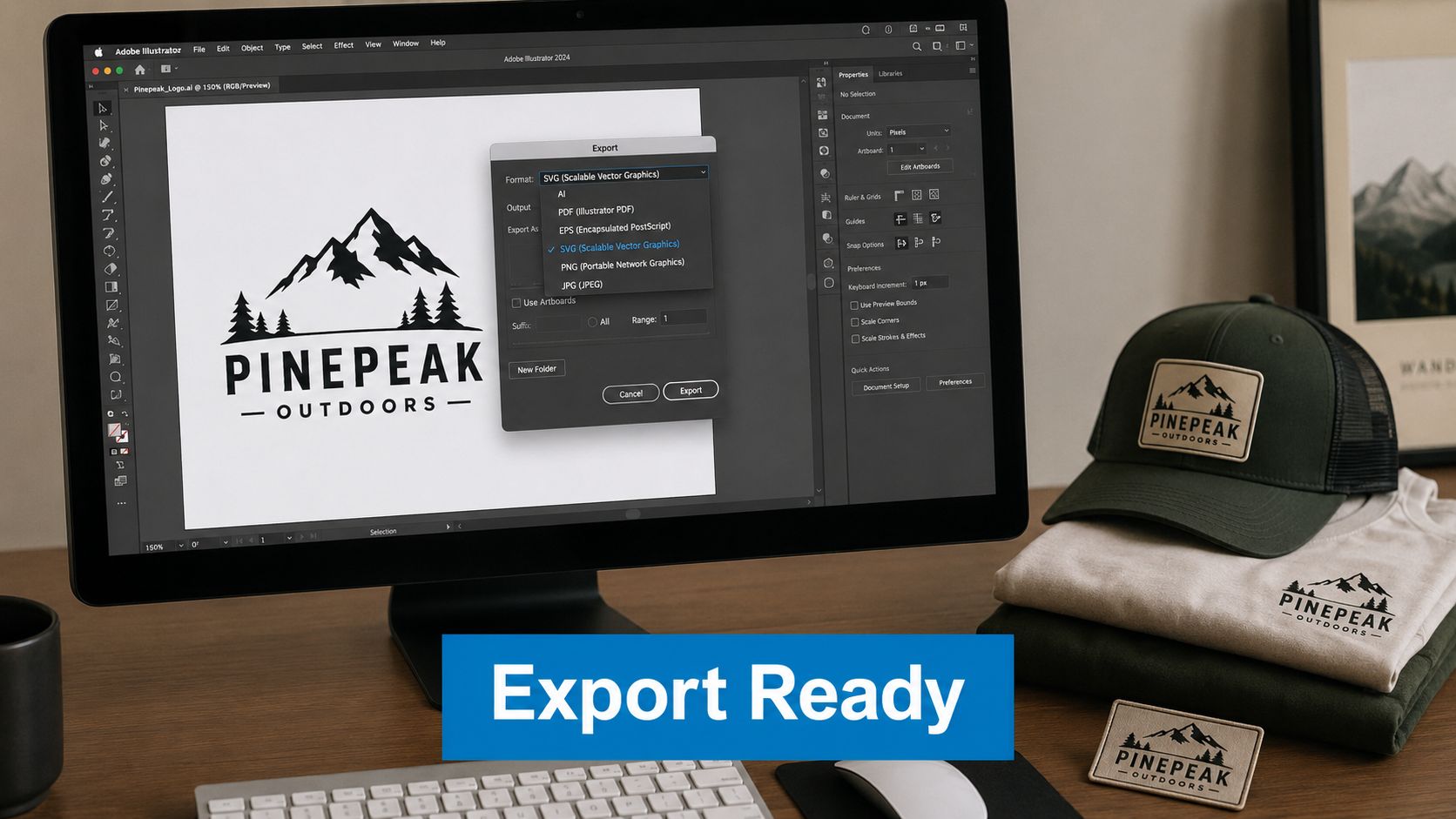
Keep the .AI file as your master. That's the editable source with layers, alternates, and clean vectors. Export an .EPS if a vendor asks for broad compatibility. Save a .PDF for proofing and easy review. Export a transparent PNG for quick digital use, but don't treat the PNG as your production master.
A reliable handoff package usually includes:
- Master AI file: Editable source with organized layers
- EPS version: Helpful for compatibility with older workflows
- PDF proof: Easy for approvals and visual review
- PNG with transparency: Useful for mockups and web placement
- One-color versions: Dark and light variants for flexible decoration
Name the files clearly. “finallogo2realfinal.ai” wastes time. Use names like brand-primary-cmyk.ai, brand-onecolor-black.eps, and brand-icon-white.png.
Size with the decoration area in mind
Apparel sizing isn't just about inches. It's about where the logo sits and how much visual weight it needs in that location. A left-chest logo and a cap logo don't behave the same way even if the artwork is identical. Small areas punish fine detail. Patches need clean borders and readable interiors.
Use placement logic instead of guessing:
- Left chest: Keep detail readable at small scale. Avoid tiny taglines.
- Full front: You have more room, but don't let complexity replace hierarchy.
- Hat front: Bold shapes and short text win here.
- Patch art: Build a version with a clear outer shape and simplified interior detail.
If patches are part of the plan, it helps to review examples of custom patches for uniforms before finalizing line weight and border structure. A logo that works on a shirt print may still need adjustment to become a strong patch.
The safest habit is to create size-specific proofs from the master file. Don't assume one logo version fits every placement. Prepare a chest version, a hat version, a patch version, and a full-size version if the job calls for it. That extra step catches readability problems before production does.
If you want a logo reviewed by people who understand how artwork needs to perform on shirts, hats, outerwear, patches, and promotional products, Dirt Cheap Product, Inc. can help turn your file into something decoration-ready. Upload your logo, get responsive support, and make sure the final result works for screen printing, embroidery, DTF, sublimation, and patch applications without the usual back-and-forth.